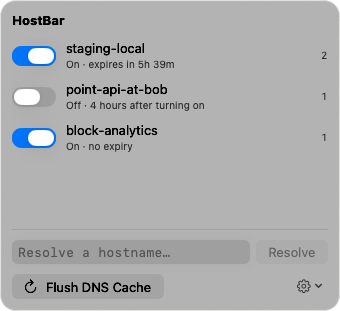
HostBar
Block a website on Mac using the hosts file
To block a website on a Mac using the hosts file, give its hostname an address that leads nowhere. Every app that uses the system resolver then fails to reach it. No extension, no extra software.
Add the lines
sudo nano /etc/hostsGo to the end of the file and add one line per hostname. Leave the lines that are already there alone, localhost in particular.
0.0.0.0 example.com
0.0.0.0 www.example.com
Save with Control-O then Return, and exit with Control-X. The file has no wildcards, so example.com does not cover www.example.com or m.example.com. Each name the site uses needs its own entry; several names can share one line after the address.
Flush and check
sudo dscacheutil -flushcache; sudo killall -HUP mDNSRespondermacOS usually notices the edit on its own, but an answer it cached before the edit can linger. After the flush, ask the system resolver what it has. It should print the address you wrote:
dscacheutil -q host -a name example.comDo not check with dig or nslookup. Both talk to a DNS server directly and never read the hosts file, so they keep showing the real address. Then quit the browser completely and open it again.
0.0.0.0 or 127.0.0.1
Blocklists conventionally use 0.0.0.0, the address that means "no address". 127.0.0.1 works as well. On macOS both end up at your own machine: with nothing listening on ports 80 and 443 the connection is refused at once either way. If you run a local web server, the blocked site shows that server's page instead of an error, with either address.
When the site still loads
- The browser has not let go. Open tabs keep their connections, and Chrome keeps its own host cache: restart the browser, or clear it at chrome://net-internals/#dns.
- You blocked one name and the site uses another. Check the address bar after the page loads; it is often the www name.
- The browser resolves names itself with DNS over HTTPS: "Use secure DNS" in Chrome's security settings, "DNS over HTTPS" in Firefox's privacy settings. Both are meant to honor the hosts file first, but if the block works in curl and not in one browser, turn that setting off to rule it out.
- iCloud Private Relay sends Safari's traffic through Apple's relays and can sidestep the hosts file. Turn it off in System Settings, under your name, then iCloud, then Private Relay, and test again.
- The site is reached over IPv6. A 0.0.0.0 line answers IPv4 lookups only. Add an IPv6 line as well; ::1 is the form macOS already uses in this file for localhost.
::1 example.com
::1 www.example.com
A quick test that leaves the browser out of it:
curl -sv https://example.com 2>&1 | grep -E "Trying|Connected|refused"Undo it
Open the file again, delete the lines or put a # in front of them, save, and run the flush command once more.
What this is not
A hosts-file block is a focus aid, not parental control. Anyone with an admin password can remove the line, and a VPN, a proxy, or another browser profile with its own DNS settings can go around it. It also blocks whole hostnames only: not one page on a site, and not an app that connects by IP address.
A block that switches itself off
In HostBar the same lines live in a profile. Turn the profile on from the menu bar and it writes them to /etc/hosts; after the number of hours you chose it turns itself off, whether or not HostBar is still running, removes exactly what it added, and posts a notification. The Flush DNS Cache button is in the same menu. That suits "no news sites until five" better than a permanent line you forget is there. You can switch it off early, so it is still a focus aid and nothing stronger.