HostBar
Chrome ignores the hosts file on Mac
Safari and curl ask the Mac’s resolver for every name. Chrome does not: it has a built-in resolver that reads /etc/hosts itself, caches the answers on its own schedule, and reuses open connections across page loads. So the file can be right, the Mac can agree with it, and Chrome can still be talking to the old address it already had. Secure DNS gets the blame most often; it is checked in step 6, and on current Chrome it is rarely the cause.
1. Prove the Mac sees the override
dscacheutil -q host -a name example.com
curl -sv -o /dev/null http://example.com/ 2>&1 | grep Connected
The first command prints the hosts-file address; the second shows the address a real connection went to. If either is wrong, the problem is not Chrome: see Hosts file change not taking effect on Mac. If both are right, keep going.
2. Clear Chrome’s host cache
Open chrome://net-internals/#dns and click Clear host cache. Chrome keeps resolved names in its own cache, so a name you visited before the edit stays on its old address until the entry expires. This is the fix for the plain case of “I added the line and nothing changed”.
3. Drop the open connections
A reload reuses a connection that is already open to the old server and never resolves the name again. Open chrome://net-internals/#sockets and click Flush socket pools (or Close idle sockets). Quitting Chrome does the same, but it has to be a real quit: Cmd-Q, and if “Continue running background apps when Google Chrome is closed” is on in chrome://settings/system, the process stays alive with its sockets, so quit it from the menu bar icon too.
4. HSTS and cached redirects
Two signs: you type http://example.com and Chrome goes to https:// by itself, or the page lands on the old site’s redirect target. Chrome remembers that a site asked for HTTPS (HSTS) and caches permanent redirects, and both outlive your hosts edit.
Open chrome://net-internals/#hsts, type the domain under Delete domain security policies, and click Delete. Preloaded entries cannot be removed, which is why .dev and .app names always go to HTTPS; use .test for local names. A cached redirect clears with the “Cached images and files” item in chrome://settings/clearBrowserData, or sidestep it in an incognito window. Chrome’s own “Always use secure connections” switch lives in chrome://settings/security.
5. A proxy is resolving the name for you
When Chrome sends traffic through a proxy, it sends the hostname to the proxy and the proxy resolves it, on its own machine, with its own DNS. Your /etc/hosts is never consulted. VPN clients, a PAC file from work, and debugging proxies like Charles or Proxyman all count. Open chrome://net-internals/#proxy to see the configuration Chrome is actually using, and compare it with the Mac’s:
scutil --proxyA clean Mac prints only an ExceptionsList with *.local and 169.254/16. If a proxy is set, add the hostname to the bypass list (System Settings → Network → your connection → Details → Proxies), or turn the proxy off while you test. An extension can also proxy Chrome’s traffic without the system knowing; step 7 catches that.
6. Secure DNS: check it, but it is probably not the cause
The setting is Use secure DNS in chrome://settings/security. The common claim is that it sends every lookup to a DNS-over-HTTPS server and skips the hosts file. Tested on Chrome 154 on macOS 26 with a fresh profile: with Secure DNS forced to a custom provider, a name that exists only in /etc/hosts still loaded, and the same happened with the provider pointed at an unreachable address, where every other name failed. Chrome’s built-in resolver reads /etc/hosts before it asks any server, encrypted or not. Firefox’s documentation says the same about its DNS over HTTPS: names listed in /etc/hosts are excluded from it.
Switching Secure DNS off is still a fair test, since it removes a variable and other Chromium-based browsers and older versions were not tested here. Just do not stop there when it changes nothing.
7. Rule out the profile
open -na "Google Chrome" --args --user-data-dir=/tmp/chrome-fresh http://example.com/That starts a second Chrome with an empty profile: no host cache, no HSTS entries, no cached redirects, and no extensions. If the override works there, the problem is state in your normal profile, and steps 2 to 4 clear it; if an extension that routes traffic (a VPN or privacy extension) is installed, disable it. If the fresh profile fails too, go back to step 1 and step 5.
Step 1 in one lookup
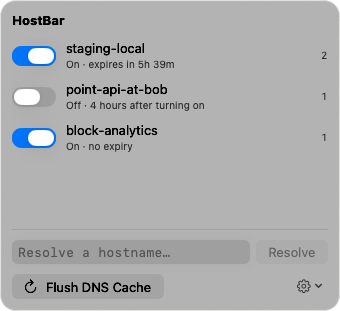
HostBar’s resolve panel shows what /etc/hosts says for a name, which profile put it there, what macOS itself answers, and what every DNS server the Mac uses answers, side by side, with a plain verdict about which one wins. When those agree and Chrome still disagrees, you know to skip the terminal and go straight to the chrome:// pages above. The Flush DNS Cache button in the menu covers the Mac’s side without sudo.