HostBar
/etc/hosts permission denied or read-only on Mac
/etc/hosts on a Mac is owned by root, so you can read it but not save it as yourself. Open it with sudo and the save works:
sudo nano /etc/hostsIf you already used sudo and still cannot save, the error message tells you which of the problems below you have.
Which error you have
- vim: E45: 'readonly' option is set (add ! to override), or after :w!, E212: Can't open file for writing. You opened the file without sudo.
- nano: [ Cannot open file for writing: Permission denied ]. Same cause. On macOS 26, nano is Apple's pico, which is where this wording comes from.
- Terminal: zsh: permission denied: /etc/hosts. A redirect such as >> /etc/hosts ran as you, even if the line had sudo in it. See the next section.
- Operation not permitted, even with sudo. The file is locked by a flag, or a management or security tool is blocking the write. See below.
"Permission denied": use sudo the right way
Open the editor with sudo. Quit vim with :q! first if you are stuck in it, then:
sudo vim /etc/hostsDo not reach for :w! in vim: the ! only overrides vim's own read-only setting, not the file's owner, so it ends in E212.
A line like this fails the same way, because your shell opens /etc/hosts for the >> before sudo even runs:
sudo echo "127.0.0.1 myapp.test" >> /etc/hostsLet a root process do the writing instead. tee -a appends, and > /dev/null stops it echoing the line back:
echo "127.0.0.1 myapp.test" | sudo tee -a /etc/hosts > /dev/nullIf you prefer to run your editor as yourself, with your own settings, sudo -e copies the file to a temporary file you own, opens your $EDITOR on it, and copies it back as root when you quit. macOS has no separate sudoedit command, so use the flag:
sudo -e /etc/hostsTo make it use a particular editor, set EDITOR for that one command, for example EDITOR=nano sudo -e /etc/hosts.
TextEdit and other sandboxed apps cannot save to /etc/hosts at all, because they run as you. Use Terminal, or an editor that offers to save with administrator rights.
sudo itself is refused
If sudo rejects you after the password prompt, your account is a standard user, not an administrator. Check:
id -Gn | tr " " "\n" | grep -x adminNo output means you are not in the admin group. Ask an administrator to make the change, or to make your account an admin in System Settings, Users & Groups.
"Operation not permitted" even with sudo
Root getting "Operation not permitted" means the block is not file ownership. Start with the file's flags:
ls -lO /etc/hostsThe column after the group is the flags. A normal file shows - there:
-rw-r--r--@ 1 root wheel - 278 Jun 4 16:15 /etc/hostsIf it shows uchg (user immutable) or schg (system immutable), the file is locked: no one can change, rename, or delete it until the flag is removed, root included. You do not need to worry about System Integrity Protection here; it does not protect /etc/hosts, so it is not the cause.
A flag like that rarely appears by accident. Someone set it on purpose, often a device management profile or an IT script keeping the file in a known state, or a site blocker or parental-control tool. If it is your own Mac and you set it, or you know which tool did, remove it:
sudo chflags nouchg /etc/hosts
sudo chflags noschg /etc/hosts
On a work Mac, ask IT first. Whatever set the flag may set it again, or restore the file, and removing it can break a policy you agreed to.
If the flags column shows - and root still gets "Operation not permitted", a security tool is probably refusing the write: endpoint protection or a management agent can block changes to /etc/hosts without touching the file at all. To see whether the Mac is managed:
profiles status -type enrollment"MDM enrollment: Yes" means an organization manages the Mac, and the fix is a request to IT, not a command.
After the edit
Once the file saves, check that the owner and mode are still root, wheel, and -rw-r--r-- with ls -l /etc/hosts; Restore the default hosts file on Mac shows how to put them back if not. If the change saves but does not seem to take effect, that is a different problem: see Hosts file change not taking effect on Mac.
Edit overrides without sudo every time
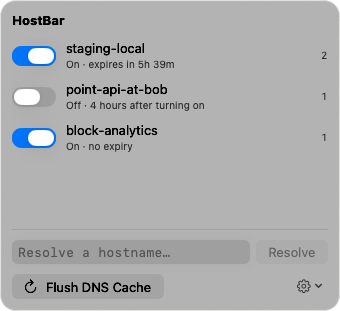
HostBar installs a small helper, approved once with an administrator password, that writes its own marked block in /etc/hosts. After that, turning a profile on or off is a click in the menu bar rather than sudo and an editor. It needs an administrator account, the same as sudo, and it does not get around a lock flag or a management policy; if something blocks root from writing the file, it blocks HostBar too.