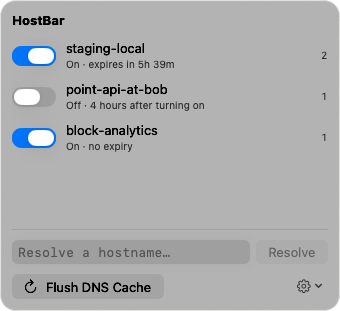
HostBar
Can the hosts file map a port?
A hosts line has an address, a name, and optional aliases, separated by spaces or tabs (man 5 hosts). The port never reaches the resolver at all: when you open http://myapp.test:8080/, the browser asks for myapp.test, gets an address back, and then connects to port 8080 on its own. Neither the hosts file nor DNS is consulted about the port, so neither can change it. The only records that carry a port are DNS SRV records, which browsers do not use for web pages.
What happens if you write one anyway
127.0.0.1:8080 myapp.test127.0.0.1:8080 is not a valid IPv4 or IPv6 address, so the resolver skips the line, and myapp.test does not resolve at all. The name falls through to DNS, where .test does not exist, and the browser reports that the site cannot be reached. Check with:
dscacheutil -q host -a name myapp.testNo output means no match. Fix the line to 127.0.0.1 myapp.test and pick one of the options below for the port.
1. Put the port in the URL
The plain answer, and often enough: map the name in /etc/hosts and type the port.
127.0.0.1 myapp.testThen open http://myapp.test:8080/. One thing to know if you run several projects this way: browsers scope cookies by host, not by port, so myapp.test:8080 and myapp.test:3000 share a cookie jar, and a login on one shows up on the other. localStorage and CORS origins do include the port. Separate names avoid the overlap.
2. Run the server on port 80
Nearly every dev server takes a port flag (--port 80, PORT=80, -p 80), and port 80 needs no port in the URL. If the server refuses with “permission denied” on the low port, start it with sudo, or use one of the next two options so your own code never needs root.
3. Redirect port 80 to 8080 with pf
macOS ships the pf packet filter, and an rdr rule rewrites the destination port of a connection before it reaches anything. Load the rule into an anchor under com.apple, which the stock /etc/pf.conf already evaluates, so you never replace the system’s own ruleset:
echo "rdr pass on lo0 inet proto tcp from any to 127.0.0.1 port 80 -> 127.0.0.1 port 8080" \
  | sudo pfctl -a "com.apple/dev80" -f -
sudo pfctl -e
pfctl -e prints “pf enabled” or “pf already enabled”; either is fine. Now http://myapp.test/ with 127.0.0.1 myapp.test in the hosts file lands on 8080. To see or remove the rule:
sudo pfctl -a "com.apple/dev80" -s nat
sudo pfctl -a "com.apple/dev80" -F all
Limits: the rule matches an address and a port, not a name, so every hostname you point at 127.0.0.1 lands on 8080; it only matches IPv4, so do not add a ::1 myapp.test line next to it; and it is gone after a reboot. Avoid sudo pfctl -F all without the -a, which flushes the rules macOS loaded for itself.
4. A reverse proxy chooses the port per name
When different names need different ports, something has to read the Host header, and that is a reverse proxy. With nginx (brew install nginx), a server block per name:
server {
    listen 127.0.0.1:80;
    server_name myapp.test;
    location / {
        proxy_pass http://127.0.0.1:8080;
        proxy_set_header Host $host;
    }
}
server {
    listen 127.0.0.1:80;
    server_name api.test;
    location / {
        proxy_pass http://127.0.0.1:3000;
        proxy_set_header Host $host;
    }
}
Homebrew reads extra server blocks from /opt/homebrew/etc/nginx/servers/, and its default site listens on 8080, so change that or stop it if 8080 is your app. Run nginx with sudo nginx for port 80. Caddy does the same job with a two-line Caddyfile per name (http://myapp.test { reverse_proxy localhost:8080 }) and can add HTTPS for local names on top. Each name still needs its 127.0.0.1 line in /etc/hosts; the proxy only handles the port.
5. For one request or one browser session
curl --resolve pins a name to an address for one port, with no hosts edit:
curl -sv --resolve myapp.test:8080:127.0.0.1 http://myapp.test:8080/The port is still in the URL; --resolve only decides which address that name and port go to. Chrome’s resolver rules can rewrite the port as well, which the hosts file cannot:
open -na "Google Chrome" --args --user-data-dir=/tmp/chrome-8080 \
  --host-resolver-rules="MAP myapp.test 127.0.0.1:8080" http://myapp.test/
That opens http://myapp.test/ and connects to port 8080 (tested on Chrome 154). It needs a separate --user-data-dir, or the switch is ignored when Chrome is already running, and it applies to that Chrome only, not Safari, curl, or your test runner.
Same file, same limit
HostBar edits the same /etc/hosts, so a profile holds names and addresses and has no field for a port. Pair a profile such as 127.0.0.1 myapp.test with option 3 or 4: the profile switches the names on and off from the menu bar, expires after eight hours unless you choose otherwise, and takes its lines out when it does, while the port mapping stays in pf or nginx where it belongs. The resolve panel confirms the name part is resolving the way you expect before you go looking at the proxy.