HostBar
Wildcard in the hosts file on Mac: *.example.test in /etc/hosts
There is no wildcard in the hosts file on a Mac, or on any other operating system. A line like this one is accepted without an error and then matches nothing you will ever type:
127.0.0.1 *.myapp.testThe file format allows any printable character in a hostname, so *.myapp.test is stored as a literal name that starts with an asterisk. api.myapp.test is a different name and still goes to DNS. Pick one of the three options below.
Option 1: list every hostname
One address can carry several names on the same line. For a handful of subdomains this is the whole fix:
127.0.0.1 myapp.test api.myapp.test admin.myapp.test
::1       myapp.test api.myapp.test admin.myapp.test
Edit the file with sudo nano /etc/hosts. The ::1 line covers tools that ask for IPv6 first. The cost is that every new subdomain means another edit.
Option 2: dnsmasq and an /etc/resolver file
For a real wildcard you need a DNS server that answers for a whole domain, and a way to make macOS ask it for that domain only. dnsmasq does the first part. Install it and add two lines to its config, which Homebrew keeps under its own prefix (/opt/homebrew on Apple silicon, /usr/local on Intel):
brew install dnsmasq
echo 'address=/.test/127.0.0.1' >> "$(brew --prefix)/etc/dnsmasq.conf"
echo 'listen-address=127.0.0.1' >> "$(brew --prefix)/etc/dnsmasq.conf"
sudo brew services start dnsmasq
The address line answers 127.0.0.1 for test and every name under it. listen-address keeps dnsmasq from answering other machines on your network. It needs sudo because it listens on port 53.
The second part is a per-domain resolver file. macOS reads the /etc/resolver directory natively: a file named after a domain sends lookups for that domain to the server inside it, and everything else keeps using your normal DNS.
sudo mkdir -p /etc/resolver
echo 'nameserver 127.0.0.1' | sudo tee /etc/resolver/test
The file also accepts a port line, and the default is 53. Stay on 53: Homebrew's own install notes warn that on current macOS a resolver file pointing at 127.0.0.1 on another port does not work reliably.
Use .test, which is reserved for this purpose. .local belongs to Bonjour, and .dev is a real top-level domain that browsers force onto HTTPS.
Option 3: use *.localhost
Chrome and Firefox treat every name ending in .localhost as loopback without asking anyone, so api.myapp.localhost works in those browsers with no setup at all. Safari and command-line tools go through the system resolver, which is less certain. On a current macOS the system resolver answers these names too, but older versions and runtimes that carry their own resolver may not, so check before you rely on it:
dscacheutil -q host -a name api.myapp.localhostTest it the right way
dig and nslookup talk to a DNS server directly. They never read /etc/hosts or /etc/resolver, so they will tell you the name does not exist while everything else on the Mac resolves it. Ask the system resolver instead:
dscacheutil -q host -a name anything.myapp.test
ping -c 1 anything.myapp.test
To check dnsmasq on its own, point dig at it. To check that macOS picked up the resolver file, look for a resolver block whose domain line names test:
dig +short anything.myapp.test @127.0.0.1
scutil --dns
Why the hosts file has no wildcards
The hosts file is a lookup table that predates DNS: one exact name, one address. On macOS it is read by mDNSResponder and matched name for name. Pattern matching is a DNS server feature, which is why every working answer to this question puts a small DNS server next to the file instead of changing the file.
If a list of names is enough
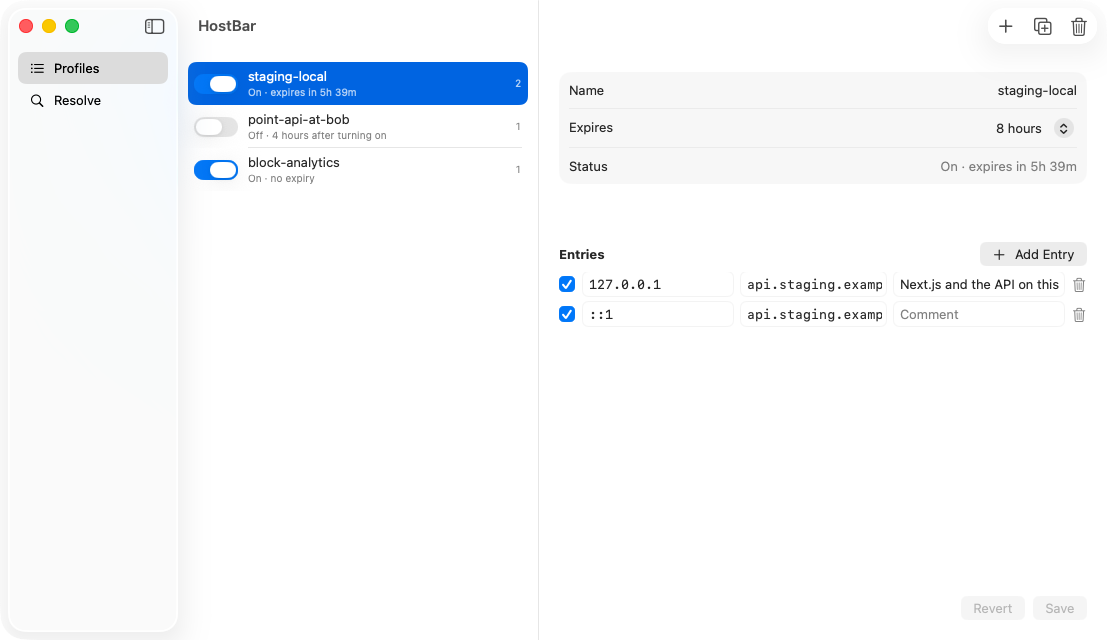
HostBar does not add wildcards to /etc/hosts; nothing can. It manages explicit hostnames: a profile holds the lines from option 1, one switch turns them all on or off, and the profile switches itself off after the number of hours you set. If you go with option 2, its resolve panel shows each /etc/resolver file and what the server behind it answers.