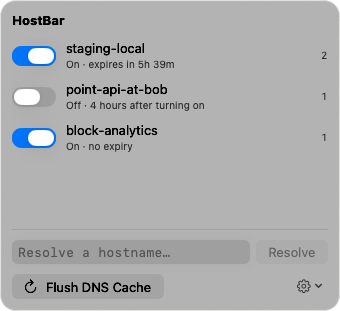
HostBar
Preview a website on its new server before changing DNS (Mac)
Visiting the new server by its IP address rarely works. A server that hosts more than one site picks the site from the name the browser asks for, and the certificate is issued for the name, not the IP, so you get the host’s default page or a certificate error. The browser has to ask for example.com and connect to the new address, and a hosts-file line does exactly that.
1. Get the new server’s address
Your new host shows it in its control panel or onboarding email: the server’s IPv4 address, and an IPv6 address if it has one. For the examples below, the new server is 203.0.113.10. Make a note of what DNS says today too, so you can tell the two apart later:
dig +short example.com
dig +short www.example.com
dig asks DNS directly and never reads /etc/hosts, so it keeps showing the old server throughout. That is expected, not a sign the override failed.
2. Add the override
sudo nano /etc/hostsAdd one line per hostname the site answers on. The bare domain and www are separate names, and so is any other subdomain the pages load from:
# preview new server, remove after the DNS switch
203.0.113.10  example.com
203.0.113.10  www.example.com
Save, then flush the cache so an earlier answer for these names is not reused:
sudo dscacheutil -flushcache; sudo killall -HUP mDNSResponderEdit the hosts file on macOS covers the format, and /etc/hosts permission denied covers saving problems.
3. Prove you are on the new server
Check what the Mac itself now resolves:
dscacheutil -q host -a name example.comYou should see ip_address: 203.0.113.10. Then check where a real request goes. curl uses the same resolver as Safari and most apps, and its verbose output names the address it connected to:
curl -sv -o /dev/null https://example.com/ 2>&1 | grep Connected* Connected to example.com (203.0.113.10) port 443In the browser, it helps to have something only the new server can show: a response header, a footer line, or a throwaway file like /preview.txt that exists only there. A page that looks right proves nothing when the two servers serve the same content.
If you still land on the old server
- The browser kept its own answer or connection. Chrome has a DNS cache separate from the Mac’s (clear it at chrome://net-internals/#dns), and a browser reuses open connections to the old server until they close. Quitting and reopening the browser clears both. See Hosts file change not taking effect on Mac.
- The browser does not use the Mac’s resolver. DNS over HTTPS in Firefox, or Chrome’s Secure DNS, can send lookups to an outside server and skip /etc/hosts. ping, dig, and the browser give different IPs explains how to tell.
- IPv6. An IPv4 line only answers IPv4 lookups. If the domain has AAAA records (check with dig +short AAAA example.com), the IPv6 lookup can still come back from DNS with the old server’s address, and a browser that prefers IPv6 goes there. dscacheutil -q host -a name example.com lists an ipv6_address line when that is happening. Add the new server’s IPv6 address as a second line for each name.
- A missing name. The site redirects example.com to www.example.com (or the other way), or loads assets from a subdomain, and that name has no line.
HTTPS on the new server
The new server needs a certificate for the name before the browser will load the site without a warning. If you are moving an existing certificate, install it on the new server first. If the new host issues one with Let’s Encrypt, it usually cannot finish until public DNS points at it, because the common HTTP challenge is checked from the internet, not from your Mac; your preview will show a certificate warning until then. Hosts that offer a DNS-based challenge or a temporary preview URL avoid that. Either way, a certificate warning during the preview is about the new server, not the override.
Without touching /etc/hosts
For a single check from Terminal, curl --resolve overrides one name for one command, and sends the right name for the certificate check:
curl -sv -o /dev/null --resolve example.com:443:203.0.113.10 https://example.com/Chrome can do the same for a whole browsing session with a command-line switch. Use a separate profile folder, otherwise the switch is ignored when Chrome is already open:
open -na "Google Chrome" --args --user-data-dir=/tmp/chrome-preview \
  --host-resolver-rules="MAP example.com 203.0.113.10, MAP www.example.com 203.0.113.10"
Neither leaves anything behind on the Mac, which is their main advantage. The hosts file is still the only option that covers Safari, Firefox, and every other app at once.
4. Take it out after the switch
Once you change DNS, delete the lines and flush again. An override that is left in place hides the real state of DNS from you: your Mac keeps reaching the new server even if the DNS change never went live, or, if you later roll back, keeps reaching the server you rolled away from. Check that public DNS has the new address with a resolver that is not your Mac’s:
dig +short example.com @1.1.1.1The old answer can linger in other caches for up to the record’s TTL, the second number in dig example.com +noall +answer.
An override that takes itself out
In HostBar, the preview is a profile: one line with the new address and both hostnames, switched on from the menu bar with no sudo and no editor once its helper is approved. Every profile expires eight hours after you turn it on unless you pick another duration, and the lines come out of /etc/hosts when it does, even if the app has quit. The resolve panel shows the hosts-file match next to what each DNS server your Mac uses answers, so you can see when they start returning the new address, and it notes when Chrome’s Secure DNS could skip /etc/hosts. Export the profile to hand the same preview to a teammate.