HostBar
Restore the default hosts file on Mac
To reset /etc/hosts to the macOS default, copy Apple's own pristine copy over it, then flush the DNS cache. Back up the current file first, in case one of the lines in it turns out to matter:
cp /etc/hosts ~/hosts.backup
sudo cp /System/Library/Templates/Data/private/etc/hosts /etc/hosts
sudo dscacheutil -flushcache; sudo killall -HUP mDNSResponder
That is the whole fix. The rest of this page is what the default file contains, what to do if that template is not there, and how to check the result.
What the default macOS hosts file contains
On macOS 26 the stock file is nine lines: a comment header and three entries.
##
# Host Database
#
# localhost is used to configure the loopback interface
# when the system is booting.  Do not change this entry.
##
127.0.0.1       localhost
255.255.255.255 broadcasthost
::1             localhost
In Apple's copy the first two entries are separated by a tab and the ::1 line by spaces. The hosts file treats any run of spaces or tabs the same, so that difference does not matter if you type it in by hand.
- 127.0.0.1 localhost and ::1 localhost are the lines that matter. Without them localhost stops resolving, and dev servers, databases, and some apps that talk to themselves over loopback break in confusing ways. The header's "Do not change this entry" is about these.
- 255.255.255.255 broadcasthost is a historical name for the broadcast address. Nothing you use is likely to depend on it, but it is part of the default, so keep it.
Older guides show an extra fe80::1%lo0 localhost line. The macOS 26 default does not have it, and you do not need to add it back.
Where Apple's pristine copy lives
macOS keeps a template of the files it puts in /private/etc on the read-only system volume, and the hosts file is one of them. Nothing you or an installer did to /etc/hosts touches it. Look at it, and at what your current file has on top of it:
cat /System/Library/Templates/Data/private/etc/hosts
diff /System/Library/Templates/Data/private/etc/hosts /etc/hosts
Lines starting with > in the diff output are the ones you would lose by restoring. If you only want to remove one or two of them, editing the file is simpler than a full reset; see Edit the hosts file on macOS.
That path is the one on macOS 26. If cat says "No such file or directory" on your version, use the next section instead.
If the template is not there: write the file yourself
This replaces the whole file with the default contents. Paste it into Terminal as one block:
sudo tee /etc/hosts > /dev/null <<'EOF'
##
# Host Database
#
# localhost is used to configure the loopback interface
# when the system is booting.  Do not change this entry.
##
127.0.0.1       localhost
255.255.255.255 broadcasthost
::1             localhost
EOF
The command has to be sudo tee, not sudo echo ... > /etc/hosts: the > is handled by your own shell, which is not root, so that form fails with a permission error even with sudo in front.
Writing over the existing file this way, or with sudo cp, keeps its owner and permissions. Replacing it with sudo mv does not: the file arrives with your user as owner and whatever mode it had.
Owner and permissions
The default hosts file is owned by root, group wheel, mode 644: root can write it, everyone can read it.
ls -l /etc/hostsThe line should start -rw-r--r-- and show root wheel. An @ after the mode only means the file has extended attributes, which is normal. If the owner or mode is wrong, put them back:
sudo chown root:wheel /etc/hosts
sudo chmod 644 /etc/hosts
Every app on the Mac reads this file as your user or as a system service, so a mode like 600 that hides it from them is as broken as a missing localhost line.
Flush the DNS cache and check
macOS notices the new file on its own, but answers it cached from the old file can linger, so flush once more. Flush the DNS cache on macOS explains what each half of this does:
sudo dscacheutil -flushcache; sudo killall -HUP mDNSResponderThen confirm the file matches the template and that localhost resolves. After the sudo cp restore, cmp prints nothing because the two files are identical. If you typed or pasted the file yourself, it reports a difference at the spacing, which is harmless:
cmp /System/Library/Templates/Data/private/etc/hosts /etc/hosts
dscacheutil -q host -a name localhost
The second command should list localhost with ipv6_address: ::1 and with ip_address: 127.0.0.1. A hostname you used to override should now resolve to its real address; check it with dscacheutil -q host -a name and the hostname, not with dig, which never reads the hosts file. Quit and reopen your browser too, since it keeps its own cache.
If sudo cannot write the file
If sudo cp or sudo tee fails with "Operation not permitted", something has locked the file, often a device management profile or a security tool. /etc/hosts permission denied or read-only on Mac covers how to tell which.
Overrides that clean up after themselves
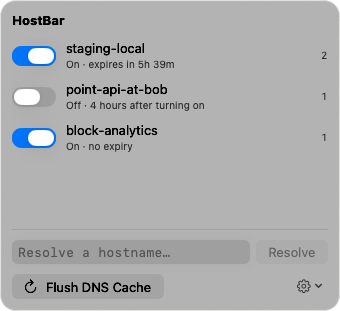
A hosts file usually needs resetting because lines piled up and nobody remembers which ones are safe to remove. HostBar keeps its overrides in one marked block and takes out exactly the lines it added when you switch a profile off or it expires, leaving the rest of the file alone. If you use HostBar, turn its profiles off before restoring the file so the block goes cleanly.